

Themed collections
Browse pointers grouped by mood and fandom — comics and games, cartoons and anime, memes and cats, cute pastel sets and more — then add the ones you like to your own collection inside the extension.
Personalize Your Pointer with Unique Cursor Designs
Sweezy Cursors brings personality to your digital experience with a diverse collection of custom mouse cursors, animated pointers, and creative themes. Explore designs inspired by anime, gaming, cartoons, and more to personalize your cursor on supported browsers and Windows desktops. Find a style that matches your taste and make everyday navigation feel more expressive.
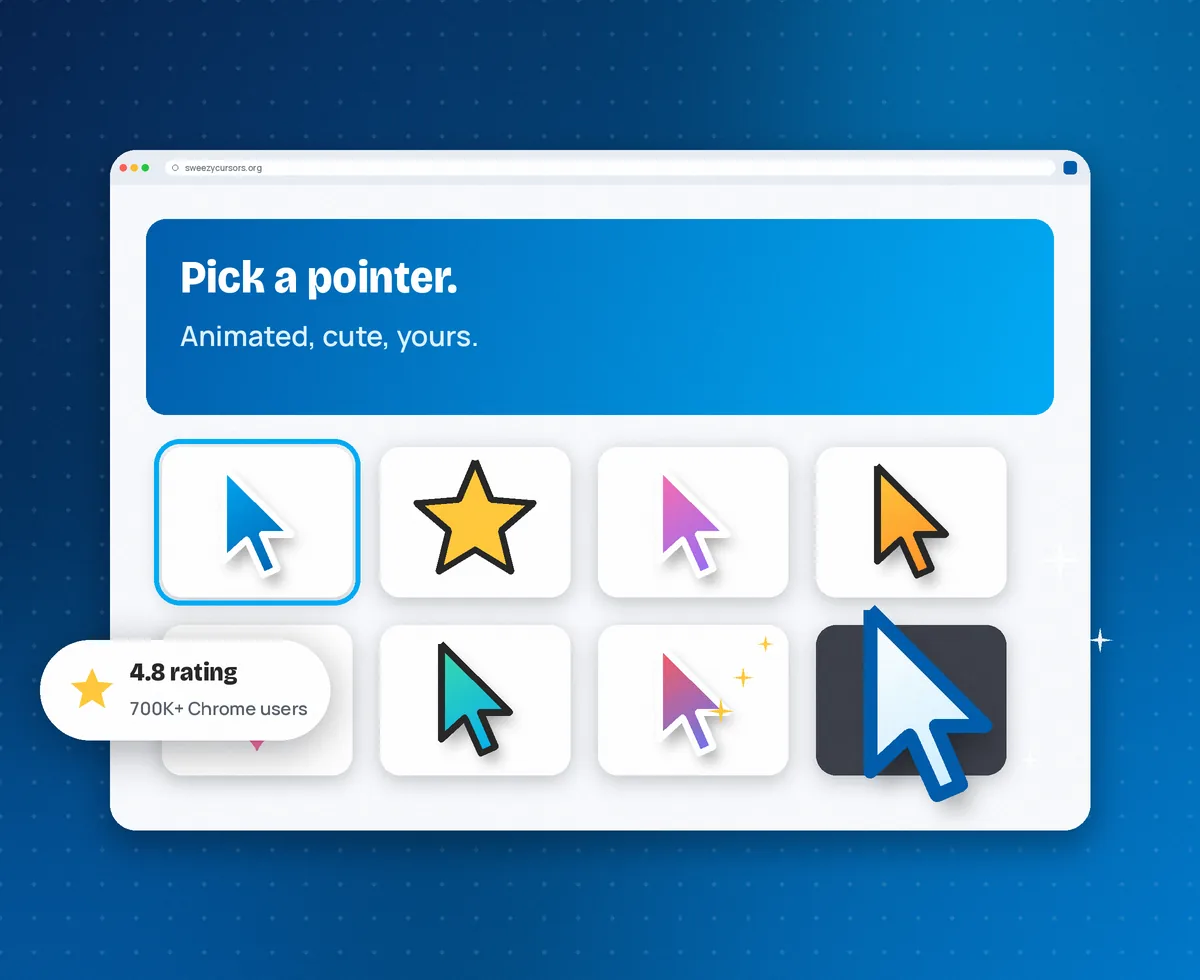
Most cursor tools hand you a fixed pack. Sweezy works the other way round: the extension is the switch, and the catalog keeps growing.
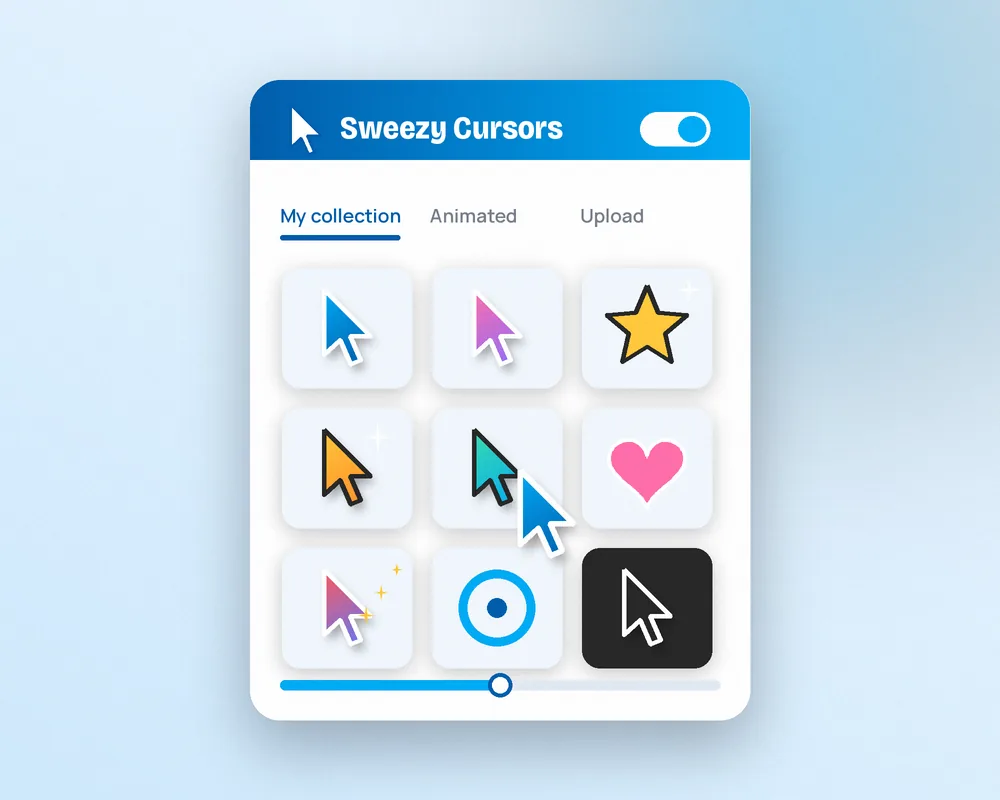
Sweezy Cursors — listed on the Chrome Web Store as “Sweezy Cursors ★ Custom Cursor for Chrome™” — replaces the standard mouse pointer on the web pages you open with a custom cursor you choose. The name is short for “sweet and easy”, and the idea is exactly that: a small extension that changes how browsing feels without touching your system settings.
Designs come from the developer's online catalog, sorted into collections such as comics and games, cartoons and anime, memes and cats, and a long list of cute styles. Many of them are now animated, so the pointer can shimmer, spin or move as you work. If nothing in the catalog fits, you can upload your own picture or assemble a custom arrow in the built-in Constructor.
Because the change happens inside Chrome only, your Windows or macOS cursor stays exactly as it was, and turning the extension off brings the normal arrow back instantly.
Eight things that set it apart from simply swapping a cursor file in your operating system.
Browse pointers grouped by mood and fandom — comics and games, cartoons and anime, memes and cats, cute pastel sets and more — then add the ones you like to your own collection inside the extension.

Pointers that sparkle, rotate and change colour while you scroll and click.

Turn a small transparent PNG into a personal cursor in seconds.

Build a custom arrow from scratch without opening an image editor.

A small download that leaves Chrome responsive during everyday browsing.

The extension interface is translated into 54 languages, from Spanish and Turkish to Hindi, Arabic, Japanese and Korean, so the menu feels native wherever you are.

No payment and no account are needed to apply a cursor. Install, choose a design and it works straight away on regular web pages.

The developer adds new designs to the catalog almost every day, so there is always something new to try for a season, event or mood.
The extension and the catalog work as a pair: one stores your picks, the other supplies the designs.
Install Sweezy Cursors for Chrome from the Web Store. It appears behind the puzzle-piece icon, ready to pin next to the address bar.
Open the catalog, browse collections and press add on any cursor you like. Each one lands in your personal list inside the extension menu.
Pick a cursor from the menu and it takes over on the pages you visit. Switch designs whenever you like or turn the extension off for the default arrow.

Works the same way on Windows, macOS, Linux and ChromeOS. The whole process takes under a minute.
Go to the Sweezy Cursors page on the Chrome Web Store using desktop Chrome. Check that the publisher website shown on the listing is sweezy-cursors.com.
Chrome shows a short permission summary. Confirm with “Add extension” and the download finishes in a few seconds.
Click the puzzle-piece icon in the toolbar and press the pin beside Sweezy Cursors so its menu is always one click away.
Open the extension menu, pick a design from your collection or visit the catalog to add new ones.
Tabs that were open before the install keep the old arrow until you refresh them. New tabs pick up the cursor straight away.
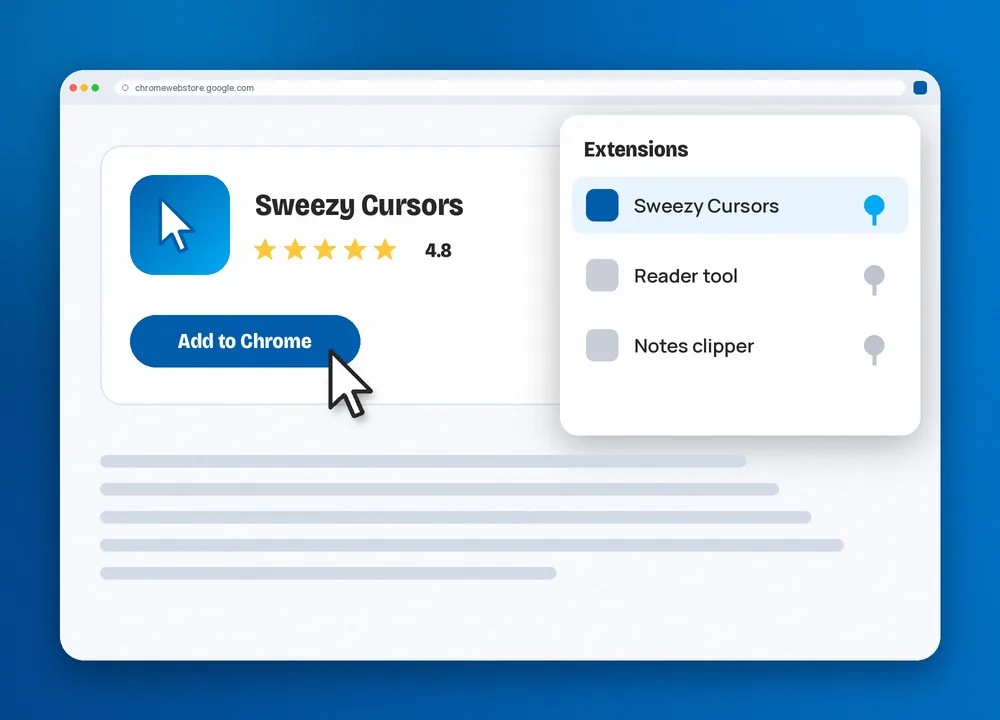
Beyond looking good, a distinctive pointer can make long sessions easier to follow.

A bright, larger pointer is easier to track across long readings, online lessons and quiz pages — and a little fun keeps revision lighter.
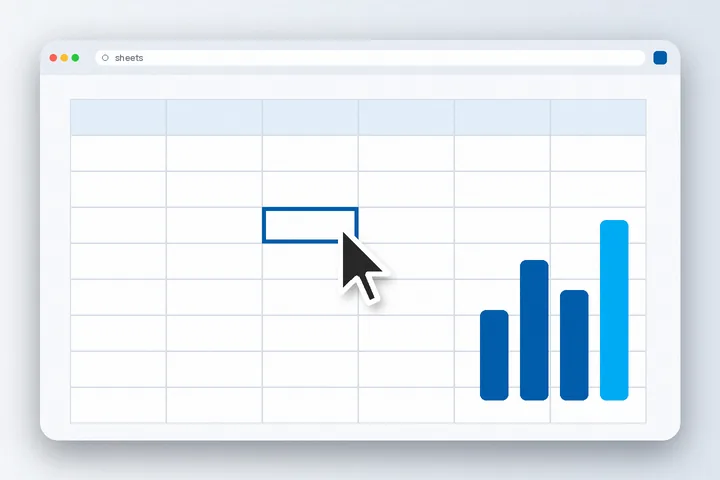
A clean, high-contrast arrow stands out against busy dashboards, spreadsheets and white document editors without distracting colleagues on a shared screen.

Themed game and cartoon pointers add character to casual web games. Titles that draw their own crosshair will still show it while you play.

When you record a walkthrough or share your screen, a distinctive cursor makes every click obvious to viewers following along.

The only safe source is the Chrome Web Store listing. It installs in one click, updates itself automatically and can be removed just as quickly.
Opens the official listing in a new tab. Avoid third-party sites that offer the extension as an .exe or .crx file.
Sweezy cursors for Chrome is a browser-level tool. Here is where it works and how it differs from changing the cursor in your operating system.
| Comparison | Sweezy Cursors | Default system cursor | OS cursor theme packs |
|---|---|---|---|
| Where it applies | Web pages inside Chrome | Everywhere | Everywhere on that computer |
| Animated designs | Yes, large animated catalog | No | Limited, depends on the pack |
| Setup effort | One click from the Web Store | None | Download files, edit system settings |
| Switching designs | A click in the extension menu | Not possible | Re-apply a scheme in settings |
| Create your own | Upload or Constructor | No | Needs a cursor editor |
| Cost | Free | Free | Free to paid |
| Admin rights needed | No (unless blocked by policy) | No | Sometimes |
Almost every case comes down to one of these six situations. Work through them in order.
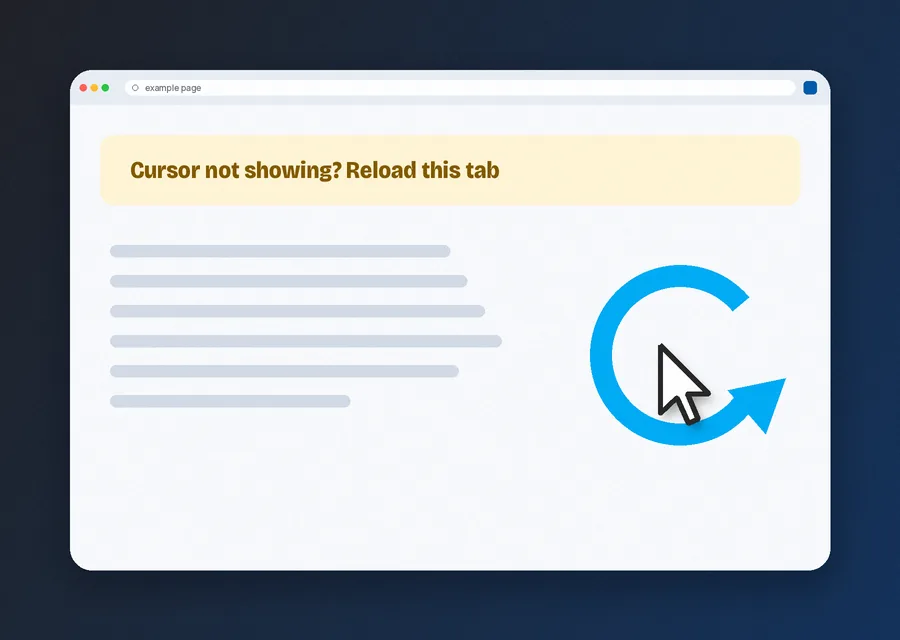
Content added by an extension only loads on fresh pages. Press F5 or Ctrl + R (Cmd + R on Mac) and the cursor appears.
New Tab, Settings, Downloads, the Web Store and PDF viewer pages are off-limits to every extension by Google's rules. Open any regular website to test.
Tabs, the address bar and the toolbar belong to the browser itself, so the system arrow always shows there.
Text boxes show an I-beam, games and maps often use crosshairs or grab hands. That is the site's choice and is expected behaviour.
Open chrome://extensions, choose Details under Sweezy Cursors and make sure site access is set to all sites. Enable “Allow in Incognito” if you browse privately.
Two cursor changers compete for the same pages. Disable the other one, reload, and Sweezy takes over again.
Still stuck? The full troubleshooting guide covers enterprise policies, hardware acceleration and reinstalling cleanly.
The demands are modest — if your computer runs a current version of Chrome, it runs Sweezy Cursors.

Windows 10 or 11, a macOS version supported by current Chrome, a modern Linux distribution, or ChromeOS.

Desktop Google Chrome, kept up to date. Chromium browsers that accept Web Store extensions usually work too.

About 617 KiB of disk space. Any machine comfortable with Chrome has enough memory, even for animated designs.

A mouse, trackpad or stylus with hover. Pure touch input has no visible pointer to customise.

A cursor extension needs access to the pages you open, so it is worth knowing exactly what you are installing.


The Web Store listing carries the Featured badge, follows recommended extension practices and shows no history of policy violations.

The developer states that user data is not collected, not sold and not used for anything unrelated to the extension's purpose.

To draw a cursor on a page, the extension has to run on that page. That is why Chrome shows a “read and change data on websites” notice during install.

Copies offered as installers or CRX files on other websites can be tampered with. Use the official listing and let Chrome handle updates.
What works well, and the limits worth knowing before you install.
 Pros
 Cons
Short, direct answers. Each links to a deeper guide where one exists.
Sweezy Cursors is a Chrome extension that replaces the standard mouse arrow inside web pages with a custom cursor of your choice. Its catalog covers animated pointers, cute designs and themed collections such as comics, games, anime, memes and cats, and you can also upload your own image or build an arrow in the Constructor.
Yes. The extension is free to install from the Chrome Web Store and the developer states that its cursor designs are free to use. There is no sign-up step required to apply a cursor.
Open the Sweezy Cursors listing on the Chrome Web Store, click Add to Chrome, confirm the prompt, then pin the extension from the puzzle-piece menu. Reload any tab that was already open so the new cursor can load there. The install guide covers each desktop system.
Google does not allow extensions to run on the Chrome Web Store, the New Tab page, Settings, Downloads and other internal Chrome pages, and no extension can restyle the tab strip, address bar or toolbar. Some websites also set their own cursor, such as the I-beam in text fields or crosshairs in games.
Chrome for Android and iOS does not support extensions, so Sweezy Cursors for mobile is not available through mobile Chrome. A few Android browsers can load Chrome Web Store extensions, but support is not official. Chromebooks run the full desktop version. See the mobile guide for details.
Yes. You can upload your own image, ideally a small transparent PNG with the pointing tip in the top-left corner, or use the Constructor to design a custom arrow without any image editor. The Constructor guide explains how to keep it readable.
The extension package is only 617 KiB, and a static cursor has no noticeable cost. Animated cursors redraw continuously, so on older laptops with many tabs open a static design is the lighter choice.
Install it only from the official Chrome Web Store listing. The developer declares that it does not collect or use your data and does not sell it to third parties, and the listing shows a good publisher record. The site-access permission exists because the extension has to draw the cursor on the pages you visit.
Chromium-based browsers can usually install extensions from the Chrome Web Store, so Sweezy Cursors often works in them, but it is published for Chrome and only Chrome is officially supported. Firefox and Safari cannot install it.
Turn the extension off from its menu or from chrome://extensions, or remove it entirely. The standard arrow returns on the next page load. Your system cursor outside Chrome is never changed, so there is nothing to restore in Windows or macOS settings.