Sweezy Cursors animated cursors are the reason many people install the extension in the first place. A pointer that shimmers, spins or dances turns ordinary browsing into something a little more fun. This guide walks through the collections, the motion styles, and how to choose a custom cursor that still feels right when you have real work, games or recordings on screen.
What Makes a Sweezy Cursor "Animated"
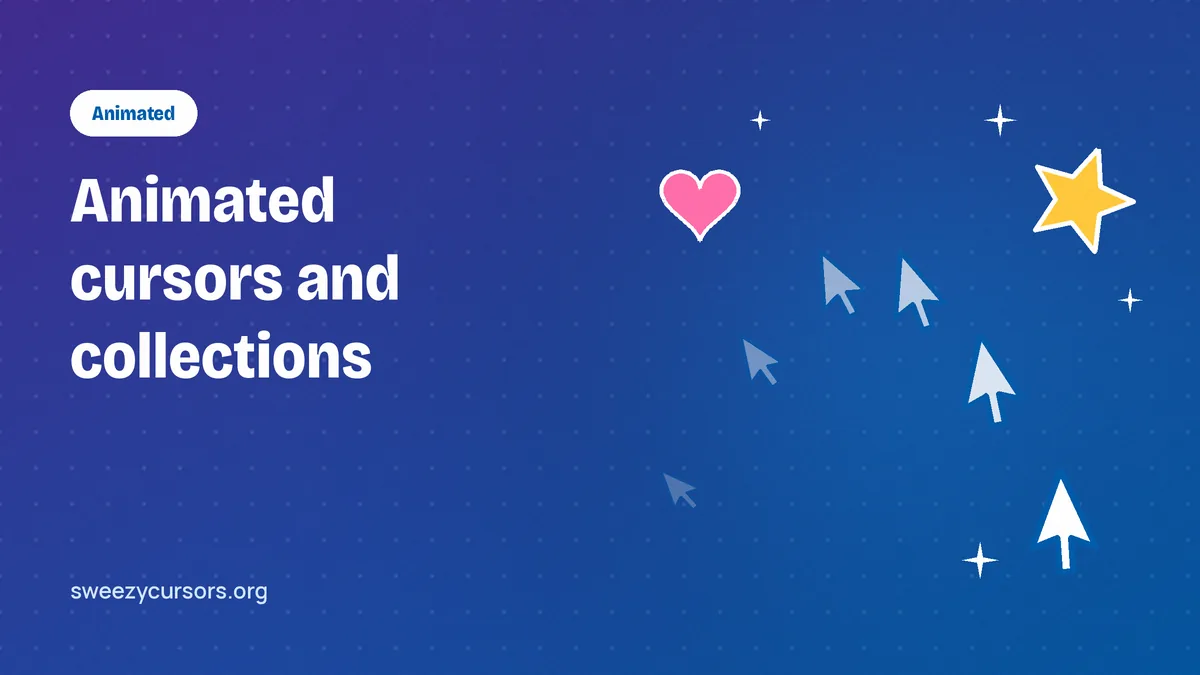
Every design in the Sweezy catalog replaces the standard Chrome arrow and the hand pointer that appears over links. A static design is simply a different picture. An animated design is a short loop of frames that plays continuously while the pointer sits on a web page, so the cursor appears to move on its own even when your hand is still.
The animation runs inside the page itself. Sweezy cursors for Chrome work by drawing the custom image on websites you visit, which is why the effect shows on a news article or a web app but not on the address bar, the tab strip or the toolbar. Those parts of the browser belong to Chrome, and no extension can repaint them. The same applies to Chrome Web Store pages and internal pages such as settings, where you will always see the default arrow.
The four motion types you will see
Browse the catalog for a few minutes and the animated designs fall into a handful of recognisable patterns:
- Shimmer: the shape stays put while light or colour sweeps across it. This is the gentlest kind of motion and the easiest to live with all day.
- Move: a part of the design shifts, such as a character blinking, a tail swishing or a flame flickering at the tip.
- Spin: the whole design or one element rotates, common with coins, stars, donuts and planets.
- Dance: the most energetic style, where a character bobs or wiggles in a full loop.
Knowing which type you are looking at helps more than the artwork does. A cute character that only shimmers can be calmer than a plain arrow that spins.
Animated versus static designs
Static cursors still have a place. They are lighter on older machines, easier to track when you are reading long text, and better for anyone who finds constant motion distracting. Many people keep one static design and one animated design saved, then switch depending on the task. Because all designs are free, there is no cost to experimenting until you find a pair that works.
Exploring the Sweezy Collections
Designs are grouped into collections on the developer's catalog at sweezy-cursors.com, and you add a cursor from the site straight into the extension. The catalog is updated almost daily, so the lists below describe the general shape of each collection rather than a fixed inventory.
Comics & Games
This is where you find swords, controllers, power-ups, pixel-art heroes and items that echo well-known games. These designs tend to be bold, with strong outlines and saturated colours, which makes them surprisingly readable. A sword or wand also gives you a natural "point" at the tip, so it is clear where you are actually clicking.
Cartoons & Anime
Characters dominate this group, often in a pose that leaves an arm, weapon or prop as the pointing edge. Animated versions here frequently use the move or dance style. They look great in a browser window and are a favourite for fans who want their screen to match their interests.
Memes & Cats
Expect familiar internet faces, reaction images and a large number of cats. These are the designs most likely to make a viewer laugh if you share your screen. They can also be the hardest to aim with, since a round cat face has no obvious tip, so test them on a few small buttons before keeping one.
Cute designs and everything else
Pastel food, hearts, flowers, small animals and seasonal themes fill out the rest of the catalog. Many of these come in both static and animated forms. If you want something that the catalog does not have, you can upload your own image or build an arrow in the Constructor, covered in the custom cursor Constructor guide.
Matching a Custom Cursor to What You Are Doing
The best custom cursor is not the flashiest one. It is the one that fits the moment. A design that delights you during casual browsing can become a nuisance in a spreadsheet. Thinking about the activity first makes the choice easy.
| Activity | Motion level | Good fit | Avoid |
|---|---|---|---|
| Studying and reading | None or shimmer | Slim arrow shapes, soft colours | Dancing characters that pull the eye |
| Office work and web apps | None or shimmer | Clear tip, medium size, high contrast | Round designs with no obvious point |
| Browser gaming | Any | Themed swords, wands, crosshair-like shapes | Oversized designs that hide targets |
| Streaming and tutorials | Shimmer or gentle move | Bright, easy-to-follow designs | Fast spin that blurs in compressed video |
| Casual browsing | Any | Whatever makes you smile | Nothing in particular |
Study and reading sessions
When you are working through course material, the cursor mostly rests on the page while your eyes move across text. Motion in the corner of your vision pulls attention away from the words. A static design, or one with a slow shimmer, keeps the fun without breaking concentration. Choose something with a thin outline so it does not cover letters when you leave it parked in a paragraph.
Work, spreadsheets and web apps
Precision matters most here. Small checkboxes, cell borders and tiny icons in tools such as online editors demand a pointer with an obvious hotspot, the exact pixel that registers the click. Arrow-shaped designs and pointed items such as pens or swords are ideal. Keep the size moderate; a large character can sit over the very menu item you are trying to read.
Gaming in the browser
Browser games are where animated designs feel most at home. A themed cursor adds atmosphere, and fast motion rarely matters because you are already watching a busy screen. The one thing to check is size. If a game relies on clicking small targets quickly, a compact design will help you more than a large detailed one.
Streaming and recording tutorials
Viewers need to follow your pointer, so visibility beats style. A bright design with a strong outline is easy to spot even after video compression. Very fast spins can smear into a blur in recordings, so a shimmer or gentle move animation usually reads better on playback. Do a short test recording before an important session and watch it back at the resolution your audience will see.
Readability, Accessibility and Performance
A cursor is a tool before it is decoration. A few quick checks make sure your chosen design never gets in the way.
Keeping the pointer easy to see
Test any new design against both light and dark pages. A pale pink cursor can vanish on a white document, while a black outline disappears on a dark-mode site. Designs with a contrasting border work on almost everything. Pay attention to where the hotspot sits too: if clicks seem to land slightly off, the design probably points from a spot you did not expect, and a different shape will feel more accurate.
If you have reduced vision or simply use a high-resolution display, a slightly larger design can be easier to follow. If you are sensitive to motion, stick to static designs or the slowest shimmer effects, and switch back to the default arrow whenever constant animation becomes uncomfortable. Comfort should always win over looks.
Performance on older or low-end machines
The extension itself is small, around 617 KiB on the store listing, and a single animated cursor is a light load for most computers. On an older laptop or a budget Chromebook with many tabs open, though, constant animation is one more thing for the browser to draw. If pages start to feel sluggish, try a static design for a day and compare. Closing unused tabs helps far more than any cursor change, but there is no reason to run a dancing character while you are already short on memory.
Remember that the cursor appears only on pages that have loaded after the extension was active. Tabs that were open before installation need a reload. If a design refuses to show at all, the Sweezy Cursors not working guide covers the usual causes.
Swapping Cursors Often Without the Hassle
Part of the appeal of Sweezy is how quickly you can change your mind. Since the catalog grows almost every day and every design is free, many people treat their cursor like a phone wallpaper and swap it whenever they feel like a change.
Rather than collecting dozens of designs, keep a short list of four to six favourites that cover your activities: a focus design, a gaming design, a recording design and one or two purely for fun. A smaller list is quicker to scan in the popup and stops you from scrolling past cursors you never use. Remove designs you have not touched in weeks to keep things tidy.
Seasonal swaps are a nice habit too. With new designs arriving so often, it is worth checking the catalog around holidays and events for something themed, and switching in a snowflake or pumpkin for a few weeks keeps the extension feeling fresh. When the season ends, go back to your everyday choice.
If you have not added the extension yet, start with the official listing for Sweezy Cursors ★ Custom Cursor for Chrome™ on the Chrome Web Store. It has around 700,000 users and a 4.8 rating, and the installation steps on our homepage walk through the setup in under a minute.
Finding Your Fit
Sweezy Cursors animated cursors are at their best when the motion suits the moment: calm designs for reading and work, bold themed ones for games, bright and steady ones for anything you record. Check visibility on light and dark pages, keep an eye on performance on older hardware, and do not be afraid to switch often. With a free catalog that keeps growing, the perfect pointer for today does not have to be the one you use next week.