A Sweezy Cursors install takes under a minute, but doing it the right way matters: from the official store listing, on a browser that supports extensions, with the right permissions in place. This guide covers Windows, macOS, ChromeOS and Linux, managed school Chromebooks, pinning, a quick first-run check, updating and clean removal.
What You Need Before Installing
There is very little to prepare, but two things are worth confirming first: that your browser can run extensions, and that you are about to install the genuine Sweezy cursors extension rather than a lookalike.
Supported systems and browsers
The extension is built for the desktop version of Google Chrome. That covers Windows 10 and 11, macOS, most mainstream Linux distributions and ChromeOS on Chromebooks. Chrome for Android and Chrome for iPhone and iPad do not run extensions, so a phone cannot install it through the regular Chrome app. If that is your situation, the Sweezy cursors for mobile guide explains what is and is not possible.
Keep Chrome reasonably up to date. You can check by opening the three-dot menu, choosing Help and then About Google Chrome; Chrome will look for an update and install it if one is waiting. An outdated browser is one of the few things that can make a fresh install behave strangely.
Where the official download lives
The only place to get a Sweezy cursors download is the Chrome Web Store. The listing is titled "Sweezy Cursors ★ Custom Cursor for Chrome™", sits in the Extension > Entertainment category and carries a Featured badge. At the time of writing it shows around 700,000 users, a 4.8 out of 5 rating from about 3,200 reviews, version 4.0.5 (updated February 22, 2026) and a size of 617 KiB.
Those details are useful for spotting fakes. Copycat extensions often borrow the name but have few users, a different developer website or a much larger file size. The real developer site is sweezy-cursors.com, which hosts the cursor catalog. You will not need a separate installer file, an .exe or a .crx download from anywhere else. Our download safety guide covers how to recognise risky copies in more depth.
How to Install Sweezy Cursors on Each System
The core steps are identical across platforms because they happen inside Chrome itself. The small differences come from how each operating system handles the browser window and account.
Windows and macOS
On a Windows PC or a Mac, the process looks like this:
- Open Google Chrome and visit the Sweezy Cursors page on the Chrome Web Store.
- Check the title, user count and developer details match what is described above.
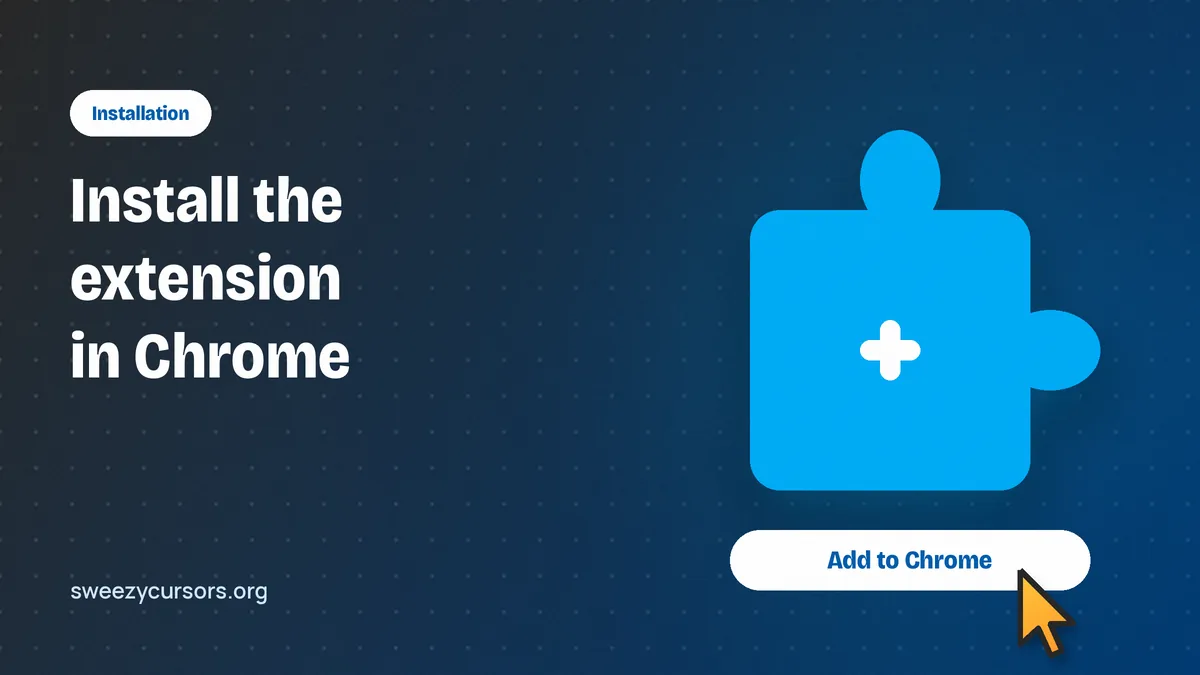
- Click the blue "Add to Chrome" button.
- A dialog lists what the extension can access. Read it, then click "Add extension".
- Wait a moment for the confirmation that the extension has been added. Chrome may also open the developer's website in a new tab.
That is the whole installation. If you are signed into Chrome with sync turned on, the extension may also appear automatically on your other computers that use the same profile.
ChromeOS on a personal Chromebook
On a Chromebook you own, the steps are exactly the same as above: open Chrome, go to the store listing, click "Add to Chrome" and confirm. Because Chrome is the main interface on ChromeOS, the custom pointer shows up inside web pages just as it does on Windows. It will not replace the system pointer on the ChromeOS shelf or in Android apps, since the extension only works inside browser tabs.
Linux
Install official Google Chrome from Google's own package for your distribution, then follow the same store steps. Chromium-based builds from distribution repositories can usually install Chrome Web Store extensions too, but behaviour can vary by build, so if you hit problems, testing in Google Chrome is the most reliable comparison. If you use a sandboxed package format such as Flatpak or Snap, the extension still installs from inside the browser; nothing extra is needed at the system level.
Managed and school Chromebooks
School and work Chromebooks are usually controlled by an administrator through Google Admin. The admin decides which extensions can be installed, and many schools block anything outside an approved list. If the "Add to Chrome" button is greyed out, or you see a message saying the item is blocked by your administrator, there is no way around it from your side, and trying to bypass it can break school rules.
The proper route is to ask your IT team or teacher whether they would allow it. Some administrators approve a request when it is clear the extension is harmless and does not collect data. The developer states that it does not collect or use user data and does not sell data, which is a reasonable point to mention in your request.
Here is a quick summary of how the installation differs across systems:
| System | Install method | Things to watch |
|---|---|---|
| Windows 10/11 | Chrome Web Store, "Add to Chrome" | Reload tabs that were open before installing |
| macOS | Chrome Web Store, "Add to Chrome" | Use Cmd+R to reload existing tabs |
| ChromeOS (personal) | Chrome Web Store, "Add to Chrome" | Works in browser tabs only, not on the shelf or in Android apps |
| Linux | Chrome Web Store, "Add to Chrome" | Official Google Chrome is the most predictable build |
| School or work Chromebook | Only if the administrator allows it | Request approval from IT rather than trying workarounds |
Pinning and the First-Run Check
Once installed, two quick steps make the extension easy to reach and confirm it is actually working.
Pin the icon to your toolbar
New extensions are tucked away under the puzzle-piece icon to the right of the address bar. Click that icon, find Sweezy Cursors in the list and press the pin beside it. The Sweezy icon now sits permanently in the toolbar, where one click opens its popup with your cursor collection.
Test it on a normal web page
Open a regular site, such as a Wikipedia article, and click the Sweezy icon. Pick any cursor from the popup, then move your mouse over the page. You should see the new design immediately, and a matching hand-style pointer when you hover over a link.
If nothing changes, check where you are testing. By Google's rules, the extension cannot work on Chrome Web Store pages or on Chrome's internal pages, including the new tab or home page, Settings and Downloads. It also cannot change the pointer over the tabs, address bar or toolbar. Testing on the store page you just installed from is the most common reason people think the install failed.
Once your first cursor shows up, the how to use Sweezy cursors walkthrough covers browsing the catalog, uploading your own images and building arrows in the Constructor.
Permissions, Site Access and Incognito
A cursor extension needs to run on the pages you visit, because it has to draw the pointer over each one. That is why Chrome's install dialog mentions access to websites. Knowing where these settings live lets you adjust them later without reinstalling anything.
Adjusting site access
Go to chrome://extensions, find Sweezy Cursors and click "Details". Under site access you can choose whether it runs on all sites, only on specific sites or only when you click it. "On all sites" gives the seamless experience most people want. If you restrict it, expect the default pointer on pages you have not allowed.
Enabling it in Incognito
Extensions are off in Incognito windows by default. If you want your custom cursor there too, open the same Details page and turn on "Allow in Incognito". You can turn it back off at any point, and it does not affect how it behaves in normal windows.
Updating and Removing the Extension
Maintenance is mostly automatic, but it helps to know how to force an update and how to uninstall cleanly if you ever need to.
Keeping it up to date
Chrome updates extensions automatically in the background, so you will normally get new versions of the Sweezy cursors extension without doing anything. If you want to check right away, open chrome://extensions, switch on "Developer mode" in the top-right corner and click the "Update" button that appears. You can switch Developer mode off again afterwards. The cursor catalog itself is separate from the extension version and is refreshed on sweezy-cursors.com almost daily, so new designs appear without needing an update at all.
Disabling or uninstalling cleanly
To pause it, go to chrome://extensions and switch off the toggle on the Sweezy Cursors card. Your pointer returns to the system default, and turning the toggle back on restores your setup. To remove it completely, click "Remove" on the same card and confirm, or right-click the pinned icon in the toolbar and choose "Remove from Chrome". Reload any open tabs afterwards so the default arrow returns everywhere.
If you removed it because something was not working, it is worth checking the troubleshooting tips on the homepage first; most issues are fixed by a reload or a permission change rather than a reinstall.
Conclusion
A safe Sweezy Cursors install comes down to using the official Chrome Web Store listing on desktop Chrome, confirming with "Add extension", pinning the icon and testing on an ordinary website rather than a Chrome page. On a managed Chromebook, go through your administrator. After that, Chrome handles updates for you, and removing it is a single click if you ever want the plain arrow back.