Sweezy Cursors swaps the plain Chrome arrow for something with personality, from a pixel sword to a spinning donut. This walkthrough covers how to use Sweezy cursors from the first click: choosing a design, switching between favourites, uploading your own image, building one in the Constructor, and knowing which pages will always show the default pointer.
Before You Start: What Sweezy Cursors Needs
The extension is small and undemanding, but a few basics decide whether everything works the first time. Getting these right saves you from the most common "it's not changing" moments later on.
Supported browsers and systems
Sweezy cursors for Chrome runs on the desktop version of Google Chrome, which means Windows, macOS, Linux and ChromeOS are all covered. The current Chrome Web Store build is version 4.0.5, updated on February 22, 2026, and it weighs in at just 617 KiB, so it will not slow down an older laptop. The interface is translated into 54 languages, and it generally follows the language your browser uses.
Chrome on Android and iPhone does not support extensions at all, so the phone version of Chrome cannot run it. If you want to explore what is possible on a phone or tablet, our Sweezy cursors for mobile guide explains the options and their limits honestly.
Get the extension in place
If you have not added it yet, install it from the official Chrome Web Store listing, where it appears as "Sweezy Cursors ★ Custom Cursor for Chrome™" in the Entertainment category. It carries a Featured badge, has around 700,000 users and holds a 4.8 out of 5 rating from roughly 3,200 reviews. For a full step-by-step with screenshots described in words, see the Sweezy Cursors install guide.
Once it is installed, click the puzzle-piece icon to the right of the address bar and press the pin next to Sweezy Cursors. Pinning keeps the icon visible in the toolbar, which you will want because that icon is your main control panel.
Picking Your First Custom Cursor
This is the fun part, and it only takes a minute. The general flow is the same whichever design you end up choosing: open the extension, choose a cursor, and move your mouse over a normal web page to see it.
Open the extension and browse
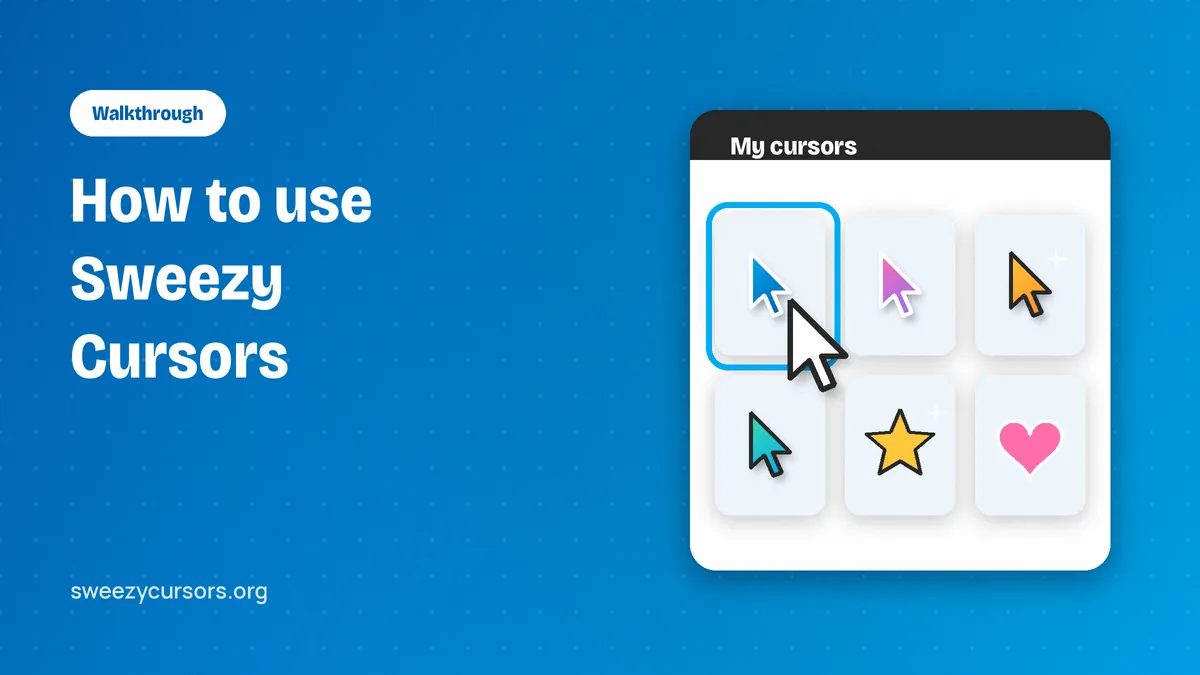
Click the pinned Sweezy Cursors icon in the toolbar. A small popup window opens showing the cursors already available to you, usually as a grid of thumbnails. Each thumbnail normally represents a pair: the regular pointer and a matching hand-style pointer that appears when you hover over links and buttons.
Click any thumbnail to make it active. Then close the popup and move your mouse over the page you have open. If you are on an ordinary website, such as a news article or a search results page, the new custom cursor appears straight away.
Adding cursors from the catalog site
The popup only holds a starter selection. The full catalog lives on the developer's website, sweezy-cursors.com, and that is where most of the variety is. Browse the categories there, and when you find something you like, use the add button on that cursor's card. Because the extension is already installed, the design is sent into it and appears in your popup collection.
The catalog is updated almost daily, so it is worth checking back now and then. A design you saw trending last week may have a whole set of companions this week, and seasonal cursors tend to show up around holidays.
Applying and switching between designs
Switching is just as simple as the first pick. Open the popup, click a different thumbnail, and the change applies to your open pages. Many people keep five or six favourites in the popup and rotate them depending on mood or what they are working on, perhaps something subtle for work hours and a meme cat in the evening.
Most versions of the popup also let you adjust cursor size. If a design feels too large for precise clicking, scaling it down a notch usually fixes that without losing the look. Spend a moment on this, because a cursor that is slightly too big becomes annoying when selecting text.
Getting the Most from the Collections
With hundreds of designs on offer, a little structure helps. Knowing how the catalog is organised makes it far quicker to land on something you will actually keep using.
Animated versus static cursors
Static cursors are a single image. They are crisp, easy to aim and suit everyday browsing. Animated cursors move: some shimmer, some spin, some play a short loop as you move the mouse. They are eye-catching and great for showing off, though a busy animation can be distracting during long reading sessions. Our guide to Sweezy animated cursors goes deeper into which ones work best for daily use.
Browsing the main collections
The catalog groups designs into themed collections. Here is a quick overview of the kinds of sets you will find and who they tend to suit.
| Collection type | What you will find | Good for |
|---|---|---|
| Comics & Games | Characters, weapons and items from popular games and comics | Gamers and anyone who wants a recognisable icon |
| Cartoons & Anime | Well-known animated characters in pointer form | Fans who want a favourite character on screen |
| Memes & Cats | Internet jokes, reaction faces and plenty of cats | Lighthearted browsing and making friends laugh |
| Cute designs | Soft colours, food, animals and kawaii styles | Students, younger users and pastel setups |
| Animated | Shimmering, moving and spinning pointers | People who want the cursor to stand out |
Every design in these collections is free to add. There is no paid tier needed to unlock a particular set, so Sweezy cursors free really does mean the whole catalog.
Making It Yours: Uploads and the Constructor
Ready-made designs cover most tastes, but the extension also lets you bring your own artwork or put together a pointer from scratch. These two features are where it moves beyond a simple theme pack.
Uploading your own cursor image
You can upload an image and use it as your pointer. This is perfect for a logo, a pet photo cut out from its background, or a drawing you made yourself. Look for the upload option inside the extension's menu and pick the file from your computer.
A few general rules make uploads look much better. Use a PNG with a transparent background, because a white square around your image looks clumsy on dark pages. Keep the image small, roughly 128×128 pixels or less is a sensible target for cursor images in extensions like this one; very large files may be scaled down or rejected. Finally, think about where the "tip" of your cursor is. The click point is typically the top-left area of the image, so artwork that points up and to the left feels most natural.
Building an arrow with the Constructor
If you would rather not hunt for an image, the Constructor lets you build a custom arrow style directly. You pick the shape and colours and adjust the look until it suits you, then save it as your active cursor. It is a good middle ground for people who want something personal but still clean and easy to aim with. The custom cursor Constructor guide walks through each option in detail with design ideas.
Where the Cursor Works and Where It Doesn't
Knowing the limits in advance prevents a lot of confusion. Some places will always show the standard Chrome arrow, and that is down to browser rules rather than a fault in the extension.
Pages that block custom cursors
Google does not allow extensions to run on Chrome Web Store pages or on Chrome's internal pages. That includes the new tab page and the default home page, Settings, Downloads, History and anything else that starts with chrome://. On all of these you will see the normal pointer.
The extension also cannot change the cursor over the browser's own interface. When you move up to the tabs, address bar, bookmarks bar or toolbar, the pointer switches back to the system default and returns to your custom design once you move back into the page. Apart from these exceptions, it works on almost every other website.
One more point catches many new users: tabs that were already open before you installed the extension do not pick up the new cursor until you reload them. Press F5, or Cmd+R on a Mac, and the design appears.
Turning it off, resetting and quick fixes
If you want the plain arrow back for a while, open the popup and switch the custom cursor off, or choose the default option if your version shows one. For a complete pause, go to chrome://extensions and flip the toggle beside Sweezy Cursors; flipping it back restores your setup.
When a design refuses to appear on a normal website, work through these checks in order:
- Reload the tab, since pages opened before a change sometimes keep the old pointer.
- Confirm the extension is enabled at chrome://extensions and that site access is set to allow it on all sites.
- If you browse in Incognito, open the extension's details and turn on "Allow in Incognito".
- Check whether you are on a Chrome internal page or the Web Store, where it is blocked by design.
Still stuck? The troubleshooting section on our homepage and the dedicated not-working guide cover rarer cases such as conflicts with other cursor or accessibility extensions.
Conclusion
Using Sweezy Cursors comes down to a short routine: pin the icon, pick a design in the popup, add more from the catalog site, and reload any tab that does not update. Once that feels natural, try uploading your own transparent PNG or building an arrow in the Constructor for a pointer nobody else has. Keep the blocked-page rules in mind, and your custom cursor will follow you across nearly every site you visit in Chrome.